
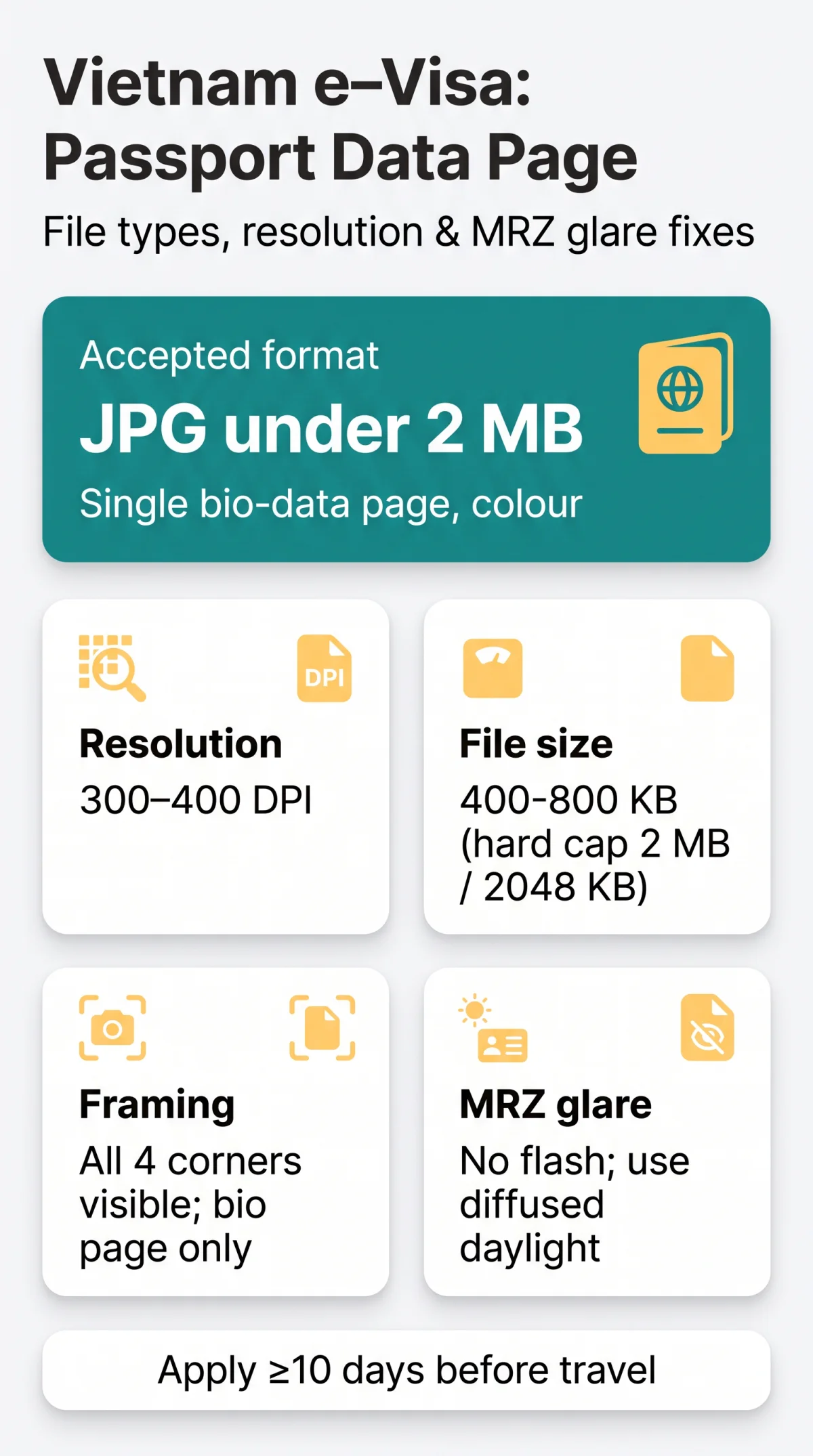
For a passport data page upload for a Vietnam visa, you need a full-colour JPG under 2 MB showing the single bio-data page, with all four corners visible and both MRZ lines free of glare. Scan in full colour at around 300 – 400 DPI. Your passport also needs six months of validity and two blank pages. You’ll upload the file at evisa.gov.vn.
This guide is written for British travellers preparing a Vietnam e-visa application, and it walks you through every technical setting – format, resolution, compression, framing and lighting. It’s an independent guide, not a government site, so double-check current requirements on the portal before you travel. We don’t collect fees or submit applications on your behalf.
Passport and Scan Requirements Before You Start
Before you scan anything, check the document itself. Your passport must be valid for at least six months from your planned entry date to Vietnam, with a minimum of two blank pages for entry and visa stamps, according to GOV.UK travel advice.
British Citizen passport holders can enter Vietnam visa-free for up to 45 days for tourism or business. For longer stays you can apply for the 90-day e-visa, or for another visa type through the Vietnamese Embassy in the UK – and the e-visa is where the bio page scan comes in. The visa system reads your scan with OCR software and auto-fills the form fields – if the passport image is invalid, the system won’t let you submit the application.
- Passport valid at least six months beyond your entry date
- Two blank pages for stamps
- UK biometric passports have a rigid, glossy polycarbonate data card – expect reflections
- Scan must be readable by the system’s OCR, not just by your own eyes
Technical Specifications for the Passport Data Page Upload
The system accepts one format only: JPG. Anything else – PNG, PDF, HEIC, BMP – has to be converted to JPG before you upload. Here’s the full specification:
| Requirement | Accepted value | Rejected value |
|---|---|---|
| File format | .jpg / .jpeg | PNG, PDF, HEIC, BMP, TIFF |
| File size | 400 – 800 KB (hard cap 2 MB / 2048 KB) | Anything over 2 MB |
| Resolution | 300 – 400 DPI | Images so low-resolution that the MRZ text is not sharp |
| Page scope | Single bio-data page only | Full booklet or two-page spread |
Why colour matters: a colour scan keeps the photo and printed details easy to compare. And why 2 MB matters: files close to the 2 MB cap often fail to upload, so aim for 400 – 800 KB.
The 300 DPI Compression Sweet Spot
Resolution and compression work against each other. Very high resolutions push the file past the 2 MB limit, while low-resolution scans blur the small print in the MRZ. The sweet spot is 300 – 400 DPI with moderate JPEG compression.
Don’t over-compress, though. Heavy compression blurs the machine-readable font, which makes the automatic read unreliable.
Framing and Cropping: Scan the Bio Page Only
Crop to the single bio-data page and nothing else. All four corners and edges of the data card must be visible, with a small margin of background around them, so no edge is cut off.
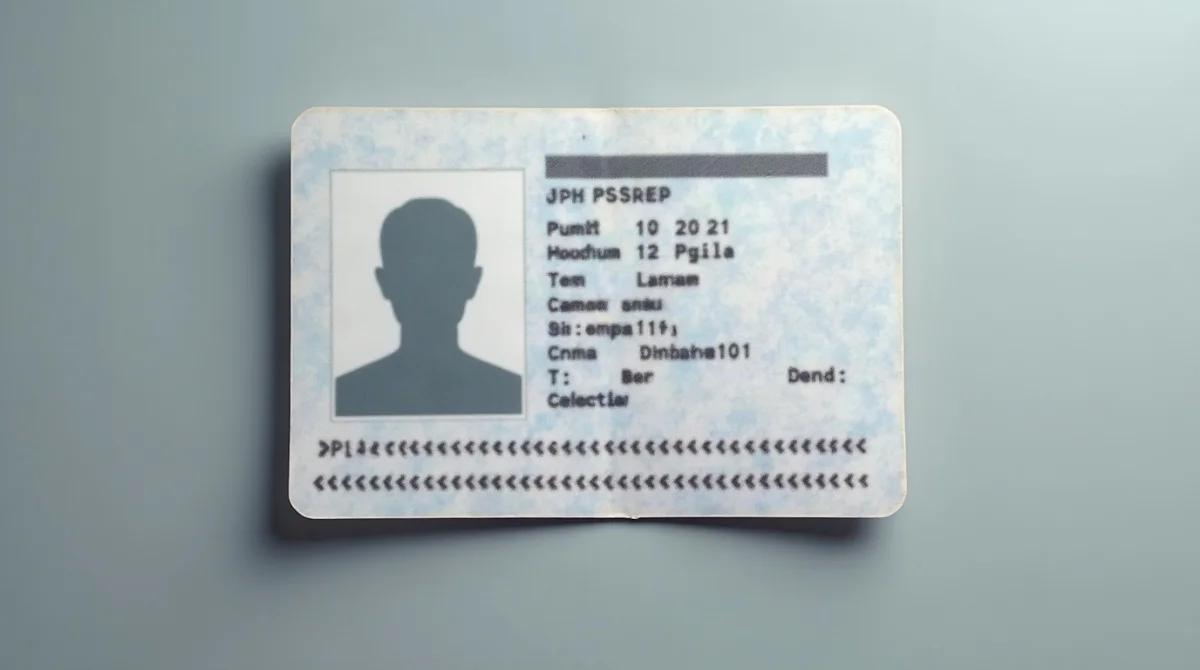
- Do keep the document flat and square to the camera or scanner glass
- Do show the full border, uncropped, on a plain contrasting background
- Don’t let fingers, staples, shadows or a passport holder appear in frame
- Don’t cut off any edge, even by a few millimetres
A missing corner isn’t a small thing. A cropped edge means the page isn’t fully visible, and that alone is enough for the file to be refused.
Single Bio-Page vs Two-Page Spread
Here’s the trap most people fall into: they open the passport flat and photograph both pages – the bio page and the signature page above it. Don’t. The portal wants only the biodata card, the rectangle with your photo and the MRZ strip.
When you upload a two-page spread, the same detail has to cover twice the area, so the MRZ text ends up too small to read reliably and the upload can fail.
How to Avoid MRZ Glare on Polycarbonate Passport Pages
Switch the flash off – reflections over the MRZ are one of the most common reasons a scan is refused. The MRZ – the Machine Readable Zone – is the two lines of OCR-B text at the bottom of your data page, packed with chevrons (<<<<), your passport number, nationality, dates and checksums.
Recent UK passports have a glossy polycarbonate data card that reflects light very easily. Direct flash bounces straight off it and creates a white-out flare exactly over those bottom ICAO lines. A reflection that looks harmless on screen can still hide characters, and the file will be sent back.
Practical Lighting Protocol for UK Passports
Work near a window with indirect, diffused daylight and no direct sun. No overhead lamps, no flash. Then:
Place the passport flat
on a dark, plain surface
Hold the phone far enough away
to keep your own shadow off the page, and zoom in slightly instead of moving closer
Check the MRZ lines on screen
before you capture, and move the light source or the passport if you see a reflection
On a flatbed scanner
close the lid fully and press the card flat without bending it
Step-by-Step: Scanning with a Phone or Scanner
Capture the document horizontally, straight on and filling most of the frame, then save it as a single JPG with a plain file name. The full workflow:
Lay the passport on a flat, contrasting background
such as a dark countertop.
Hold the camera parallel to the page
to avoid keystone distortion.
On iPhone
set Settings > Camera > Formats to Most Compatible, or convert any HEIC file to JPEG before uploading.
On Android
avoid scanning apps that export PDF – save a single JPG image instead.
Name the file with plain letters and numbers only
e.g. passport_biodata.jpg – spaces, brackets and special characters can stop the upload.
Save the image the right way round
rotation stored only in the photo’s metadata may not be applied when the file is displayed.
Two more things before you hit upload: put the bio-page scan and your portrait photo in their separate slots – swapping them is a common mistake – and don’t apply while you’re physically in Vietnam, as that’s prohibited.
Bio-Page Scan vs Portrait Photo: Two Different Uploads
You’ll upload two separate images, and they follow different rules. The portrait is a proper 4×6 cm photo on a plain white background – you cannot crop it from your passport scan.
| Feature | Bio-page scan | Portrait photo |
|---|---|---|
| What it shows | The full biodata page with MRZ | Your face on a white background |
| Dimensions | The whole data page, sharp enough to read the MRZ | 4 × 6 cm, minimum 350 × 350 px |
| File size | 400 – 800 KB, max 2 MB | Under 2 MB, ideally under 1 MB |
| Common error | Glare on the MRZ, cropped corners | Face cropped from the passport scan |
After both uploads, the system fills in your form fields from the passport image. Cross-check every one against your passport: full name (surname and given names in MRZ order), date of birth, nationality, passport number, issue and expiry dates, and gender.
Submitting: Fees and the “Amending Information” Status
Submit through evisa.gov.vn – it’s the only government visa portal. Agency sites charge a fee for submitting the same free form, and separately there are sites that imitate the portal itself. The fee is $25 for single-entry and $50 for multiple-entry, and it’s non-refundable. Standard processing takes three working days, so apply at least ten days before travel.
If your application status changes to “Amending information”, an officer couldn’t verify your data, often because of the uploaded file. Here’s what to do:
- Rescan the bio page following the lighting and framing rules above
- Re-upload it through the search panel at evisa.gov.vn/e-visa/search as soon as possible
- Don’t expect to edit a submitted application yourself – changes are only possible when immigration asks for them
- If you spot an error only after the visa is issued, you’ll need a fresh application and a new $25 or $50 payment
Frequently Asked Questions (FAQ)
What is the machine-readable zone (MRZ) on my passport?
It’s the two lines of fixed-width OCR-B text at the bottom of your data page, filled with chevrons (<<<<). They carry your passport number, nationality, dates and checksums. The visa portal reads these lines automatically to fill in your details, so both lines must be fully legible in your scan.
Can I upload a PDF scan of my passport for the Vietnam e-visa?
No. The system accepts JPG/JPEG files only, so a PDF will not be accepted. If your scanning app exports PDF, switch it to save a single JPG image instead, then check the file stays under the 2 MB limit before uploading.
Can I use a smartphone photo instead of a flatbed scanner for my passport data page upload?
Yes, provided the framing is correct, there are no shadows, the flash is off, and the file saves as a JPG within the size limit. Keep the camera square to the page and far enough away that your own shadow stays off the document, zooming in slightly instead of moving closer, and check the MRZ lines on screen before capturing.
Why was my passport data page rejected for unreadable MRZ?
The most common cause is glare – a light reflection over the polycarbonate card hiding characters on the bottom two lines. Over-compression that blurs the OCR-B font causes the same result. Reshoot in diffused daylight with the flash off, or rescan at 300 – 400 DPI.
Should I scan the signature page above my personal data page?
No. Upload only the single bio-data page with your photo and the MRZ. A spread makes the text smaller and the MRZ harder to read, which can trigger auto-fill failures or rejection of your Vietnam visa application.
What should I do if my iPhone saves the passport image as a HEIC file?
Change Settings > Camera > Formats to Most Compatible, then retake the photo so it saves as JPEG. Alternatively, convert the existing HEIC file to JPEG before you start the passport data page upload for your Vietnam visa.
Is it acceptable to cover my passport number for privacy?
No. Every element on the data page – passport number, date of birth, and the full MRZ – must be completely visible and legible. Immigration officers verify all of it, and anything masked or obscured can delay your application or lead to rejection.
What does the “Amending information” status mean, and where do I re-upload my passport scan?
It means an immigration officer couldn’t verify your data, often because of a problem with the uploaded file, such as glare or cut-off edges. Rescan following the guidelines above and re-upload through the search panel at evisa.gov.vn/e-visa/search as soon as you can.
Sources and Further Reading
- evisa.gov.vn instruction page – upload rules, file limits and the application workflow
- Vietnam National Electronic Visa system – where you submit your application and check its status
- GOV.UK entry requirements for Vietnam – passport validity, blank pages and the 45-day visa-free allowance for British citizens
Rules can change, so check the portal before you travel.